I remember applying for a programming job back in 2019. I had spent three hours in Microsoft Word, meticulously aligning bullet points, adjusting margins, and making sure my headers looked perfect. I saved the file, attached it to an email, and hit send. Two days later, the recruiter replied: “Your resume came through as a corrupted mess of misaligned text boxes. Can you send a PDF?”
I was horrified. I opened the file on my phone, and sure enough, Word had completely broken the layout when viewed on a different screen size. That was the day I swore off traditional word processors for resume writing.
Since then, I’ve tried everything. I built my own templates in Google Docs (which always ended up looking generic). I tried Canva (beautiful, but the free version leaves a watermark, or the text gets jumbled when exported). I tried Zety and Novoresume, but they quickly hit me with a $2.95/month paywall right when I was ready to download.
Eventually, I got tired of paying for something that should be basic. I wanted a clean, distraction-free, single-page tool that lived on my own website, let me see a live preview of my work, and exported a professional, ATS-friendly PDF and DOCX without charging a dime.
The Problem with Most Free Resume Builders
Before we get into the step-by-step, you need to understand why most “free” resume tools end up being a massive headache.
First, there’s the formatting trap. Tools like Canva are incredible for graphic design, but they use absolute positioning. That means you drag a text box wherever you want it. When an Applicant Tracking System (ATS)—the software 90% of large companies use to scan resumes—tries to read that file, it sees a jumble of overlapping boxes. It can’t tell what your job title is versus your email address. Your resume gets instantly rejected by a robot.
Second, there are the hidden paywalls. You spend 45 minutes typing in your entire work history, perfecting your summary, and picking a template. You click “Download” and boom: “Upgrade to Pro for $5 to remove watermarks.” It’s manipulative.
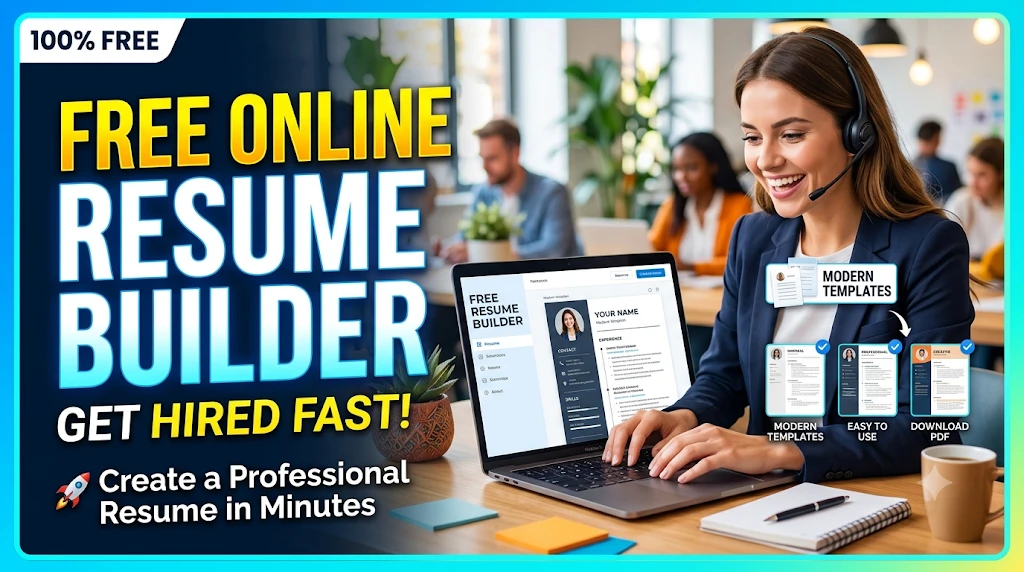
The dark-themed Resume Builder tool I’m talking about here was designed to bypass both of those issues. It lives entirely on a single page (no page reloads), uses a clean, two-column layout that ATS bots can actually read, and generates the files locally on your server. No paywalls. No watermarks.
How This Tool Actually Works (Under the Hood)
If you’re a bit of a tech nerd like me, it helps to understand what’s happening when you use this tool. If you aren’t, just skip to the next section.
The tool is built as a Single-Page Application (SPA). That means when you load the page, everything you need is already there. When you type your name into the form on the left, JavaScript instantly catches that keystroke and updates the live preview on the right. You aren’t waiting for a server to refresh the page.
When you click “Save Progress,” the tool takes all your inputs, bundles them into a neat JSON format (basically a text list of your data), and sends them asynchronously to a database using the Fetch API.
When you click “Download PDF,” the server takes that JSON data, opens a background library called FPDF, and literally draws the text onto a digital A4 page—setting fonts, drawing lines, and spacing paragraphs perfectly—before sending the final file back to your browser. Because it’s drawn in this structured, top-to-bottom format, the ATS can read it perfectly.
Step-by-Step: How to Use the Resume Builder
Let’s get into the practical stuff. Here is exactly how you use the tool to build a resume that actually gets you interviews.
Step 1: The Personal Details (And the “NAN” Trick)
Start at the top. Enter your Full Name, the specific Job Title you are applying for (e.g., “Experienced Project Manager”), your Email, Phone, LinkedIn URL, and Location.
Here is a massive tip: If you don’t have a piece of information, don’t just leave the box empty. Type the letters NAN.
Why? Because of how the live preview and PDF generator are coded. If a box is empty, the tool might leave a weird blank space or a dangling pipe character (like | |). But if you type NAN, the system is programmed to completely scrub that field from existence. It won’t show up in the live preview, and it won’t print on the PDF. It keeps your layout tight.
Step 2: The Professional Summary
Keep this to three or four sentences. Do not write a novel.
A mistake I see constantly is people writing: “I am a hard worker looking for a company where I can grow and utilize my skills.”
That tells the recruiter nothing. Instead, write something actionable: “Project Manager with 5+ years of experience overseeing $10M+ tech deployments. Proven track record of reducing delivery times by 15% using Agile methodologies.”
Step 3: Work Experience (The Meat)
Click the “+ Add Experience” button. You’ll get a new card to fill out.
Enter your Job Title, Company Name, and the Date Range you worked there.
In the Description box, this is where you need to be ruthless. Do not list your daily duties. Recruiters don’t care that you “attended meetings.” They care about results.
- Bad: Responsible for managing the team and making sure projects finished.
- Good: Directed a 12-person development team, consistently delivering projects 2 weeks ahead of schedule.
You can add multiple jobs. If you have a job from 10 years ago that isn’t relevant, use the “X” button to delete that entry entirely. Keep your history relevant.
Step 4: Education
Click “+ Add Education”. Put your Degree, the Institution, and the Year.
If you are 5+ years out of college, leave the high school education out. It takes up valuable space. If you didn’t go to college, put your highest certification or simply type NAN to skip the section altogether if it doesn’t apply to your industry.
Step 5: Skills & Languages
In the Skills box, use comma-separated values. Example: Strategic Planning, Agile, JIRA, Python, Public Speaking.
Don’t lie here. If you put “Advanced Python” on your resume, the technical interviewer will ask you to write a Python function on a whiteboard. Be honest about your proficiency level. The Languages box is the same—just type English, Spanish, French.
Step 6: Live Preview and Export
As you type, look at the right side of your screen. You’ll see a white sheet of paper updating in real-time. This is exactly what your printed resume will look like.
Notice the layout. The name is bold at the top, the job title is in a professional blue, and the section headers have subtle horizontal lines under them. This isn’t accidental. This specific typography is designed to guide the recruiter’s eye down the page smoothly.
Once you are happy with how it looks, click “Save Progress” at the bottom. Then, choose your format:
- Download PDF: Use this 95% of the time. It locks your formatting in place. It will look identical on a Mac, a PC, an iPhone, or a Chromebook.
- Download DOCX: Use this only if a specific recruiter or HR portal explicitly asks for a Word document. Sometimes companies want to strip your formatting and put their own header on your resume before passing it to a hiring manager. The DOCX version allows them to edit the text.
Real-World Scenarios Where This Tool Shines
Let me give you a couple of examples of when this specific setup saved my skin.
Scenario A: The Career Fair Rush
I was at a virtual career fair, and a recruiter from a dream company said, “Send me your resume in the next 10 minutes.” I hadn’t updated mine in eight months.
If I was using Word, I would have panicked, scrolled through old files, tried to remember which template I used, inevitably messed up the spacing, and missed the deadline. Instead, I opened this tool. My old data was already saved in the database. I updated my current job title, added my latest project, clicked “Download PDF,” and sent it in 4 minutes. The layout was flawless because the code handles the spacing, not me.
Scenario B: The ATS Black Hole
A friend of mine was applying to a massive enterprise company. She had a beautiful Canva resume with icons for her phone number and a graph showing her “Photoshop skills at 80%.” She applied and got rejected in 24 hours. We assumed she just wasn’t qualified.
She rewrote her exact same experience into this dark-themed builder, exported the PDF (which strips out all graphics and leaves pure, readable text), and reapplied to a similar role at the same company a week later. She got an interview the next day. The first resume couldn’t be read by the robot. The second one could.
Common Mistakes to Avoid
Even with a perfect tool, you can still mess up your resume. Here are the things I see people do wrong constantly:
1. The 5-Page Autobiography
Unless you are a tenured professor or a senior government official, your resume should be one page. Maybe two if you have 15+ years of highly relevant experience. If you are using this tool and your live preview is spilling onto a second page, go back and delete things. Cut the oldest jobs. Shorten your bullet points. No recruiter is reading page three of your resume.
2. Crazy Fonts and Colors
The tool I built uses a specific palette (dark navy, bright blue accents, dark gray text). I did this because it looks modern but remains highly professional. Don’t try to hack the CSS to make your resume neon green. Recruiters hate it. It screams “trying too hard.” Stick to the classic, clean lines.
3. Forgetting to Proofread
The live preview makes it so easy to see your resume that people often forget to actually read it. I once sent out a resume where I typed “Mange” instead of “Manage” in my job title. Autocorrect didn’t catch it because “mange” is a real word (albeit a gross one). Read it out loud before you click download.
The Honest Limitations of This Tool
I’m not here to sell you a magic bullet. Every tool has flaws, and you need to know what this builder cannot do.
1. It is not a graphic design tool.
If you are applying for a Graphic Design or Art Director role, this is not the tool for you. Those jobs require a portfolio-style resume with visual layouts, infographics, and custom branding. This tool is built for text-based, ATS-friendly resumes. It’s for developers, project managers, marketers, accountants, and standard corporate roles.
2. No Profile Photos (In the US/UK/Canada)
In many countries, a photo on a resume is standard. In the US, UK, and Canada, it’s highly discouraged because of anti-discrimination laws—companies will often automatically reject resumes with photos to avoid liability. This tool doesn’t support photos by design, to protect you from accidentally breaking HR rules.
3. Requires Server Space (If you host it yourself)
Because this tool saves progress to a database, it takes up a tiny bit of server space. If 10,000 people use it on your website, that database is going to get heavy. If you are just hosting this for yourself or a small team, it’s perfectly fine.
A Quick Warning: Please Don’t Overuse It
Here is the most important thing I can tell you about this tool: It is free, and it runs on server resources.
When you click “Download PDF,” the server has to wake up, allocate memory, run the FPDF script, render the file, and send it back to you. This takes a fraction of a second. But if you sit there and click “Download PDF” 50 times in a row to see how the file changes when you tweak a word, you are putting an unnecessary load on the server.
I’ve seen people write scripts to automatically generate hundreds of resumes to test edge cases. If you do that on a shared cPanel host, your hosting provider will suspend your account for CPU abuse.
Use the tool like a normal human. Type your data. Look at the live preview. Make your edits there. Only click “Download PDF” when you are 100% finished and ready to send it to an employer.
Also, don’t use it as a cloud storage drive. Don’t save 15 different versions of your resume. The database is meant to store your current resume. If you want to apply for a different job, just log in, edit the text, and save over it.
Final Thoughts
FAQs
Is this resume builder really free?
Yes, it is 100% free with no hidden charges or watermark.
Do I need to sign up?
No, you can create and download your resume without login.
Is this resume ATS-friendly?
Yes, the format is designed to be readable by Applicant Tracking Systems.
Can I download my resume as PDF?
Yes, you can download both PDF and DOCX formats.

The Editorial Team
The Editorial Team at iqqbit.info creates practical, easy-to-use resources designed to make everyday tasks simpler. We focus on useful daily-life tools, helpful guides, and straightforward information that anyone can access and understand. Our goal is to provide reliable, free tools for everyday needs while also offering premium and customizable tool options for website owners who want to add useful features to their own websites. We believe useful technology should be simple, accessible, and genuinely helpful. At iqqbit.info, we continuously work to improve our tools, keep information clear, and create resources that save users time and effort.
// 1 LOGGED_TRANSMISSIONS